On this page
How to use the Curved Text Generator
- Type your text in the box.
- Pick a font, colors and effects. The preview updates as you go.
- Download the PNG or copy the image.
About Curved text
Drag the curve slider to set how far the text bends: small values make a gentle arc, 360 wraps it into a full circle, and negative values curve it the other way, like a smile under a logo. Each letter is placed and rotated along the arc, so spacing stays even.
The PNG has a transparent background by default, so you can drop it onto a photo, a T-shirt design or a Canva project. Pick a solid background if you need one.
Short text reads best on a curve: one to four words. For a round badge, set the curve to 360, use capital letters and add two or three spaces at the end so the first and last letters do not touch. For a logo with words above and below an icon, make two PNGs, one with a positive curve for the top and one with a negative curve for the bottom, then line them up in your design app.
Popular uses
- Circular logos and badges
- Stickers and labels
- T-shirt and mug designs
- YouTube thumbnails and profile frames
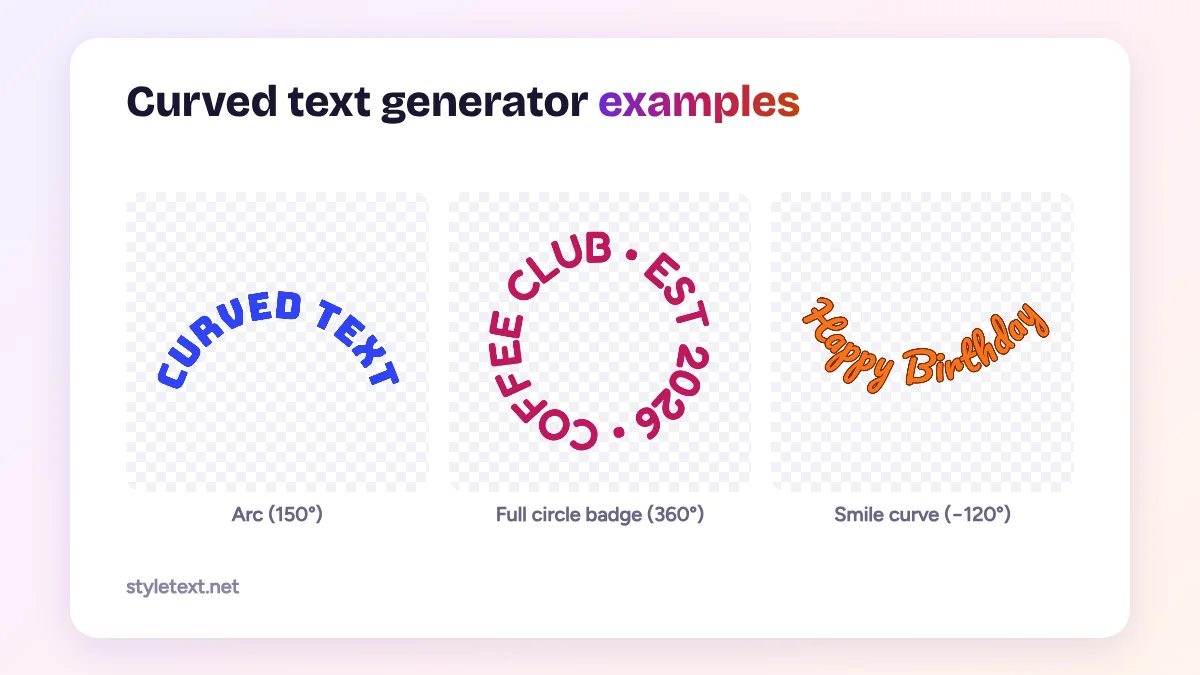
Arc, circle or smile: which curve to use
- Gentle arc (60° to 150°): a soft bend for headers, shop names and thumbnail titles. The text stays easy to read.
- Half circle (180°): the classic rainbow shape over a logo or a picture.
- Full circle (360°): a round badge or stamp. Add a dot or a star between phrases so the start and end are clear.
- Smile curve (negative values): text that bends downward, for the bottom half of a round logo or under a photo.
Every setting in this curved text generator updates the preview at once, so you can try a few angles before you download.
How to make a round logo with curved text
- Make the top line first in the curved text generator, for example your shop name, with a positive curve such as 180°.
- Download it, then make the bottom line, like “EST. 2026”, with the same font, size and a negative curve.
- Put both PNGs and your icon in Canva, Photoshop or any design app, and line them up around the icon.
- Group the layers and export the finished logo.
Using the same font size for both lines keeps the circle even. If the two lines are different lengths, add spaces to the shorter one.
Where to use curved text
- Etsy and small business logos: round badges for shop banners, packaging and labels.
- Cricut and stickers: upload the transparent PNG to your cutting software and use it as a print-then-cut image.
- T-shirts, mugs and tote bags: team names over a number, or a club name around an emblem.
- YouTube, Twitch and Discord: curved names around a round profile picture or a channel badge.
Tips for clean curved text
Thick, simple fonts hold their shape best when the letters are rotated, so start with Bungee or Fredoka and save script fonts like Pacifico for short words. Keep it to one to four words: long text needs a bigger circle and the letters get small. Add a little letter spacing for a full circle so neighboring letters do not crowd at the top. All the fonts in this curved text generator come from Google Fonts, so you can install the same font later to match the rest of your design. For straight text to copy and paste instead of an image, try the Old English font generator or the small text generator.
Frequently asked questions
How do I make text in a full circle?
Set the curve slider to 360. Add spaces at the end if the ends touch.
How do I curve text the other way?
Use a negative curve value to arc the text downwards.
Is the background transparent?
Yes by default. Choose a background color if you want one.
Can I use the PNG commercially?
Yes. All fonts on this site are free fonts under open licenses (SIL OFL or Apache 2.0).
What size is the PNG?
The image is sized to fit your text and font size. The exact size in pixels is shown under the preview before you download.
Can I curve text in Canva or Word instead?
Canva has a Curve text effect and Word has Text Effects → Transform, but both offer fewer fonts. A PNG made here works in any app as an image.